
Docs / Connect an AI
Connect Inoh to your AI
Add words to your decks without leaving the conversation. Nothing installs on your computer.
Using an app that is not listed below? Inoh answers at https://mcp.inoh.app/mcp, so any chat app or terminal CLI that lets you add an MCP server may work with it. We have not tested those.
Chat apps
Claude Recommended
- Set up in
- Mac app (start here) or web browser
- Use in
- Mac app, web browser and iPhone/iPad app (tested); the Windows and Android apps should work the same way
-
Open Claude Desktop Settings and select Connectors.
-
Select Add.
-
Name it Inoh and enter this address in the server URL field. Select Continue.
https://mcp.inoh.app/mcp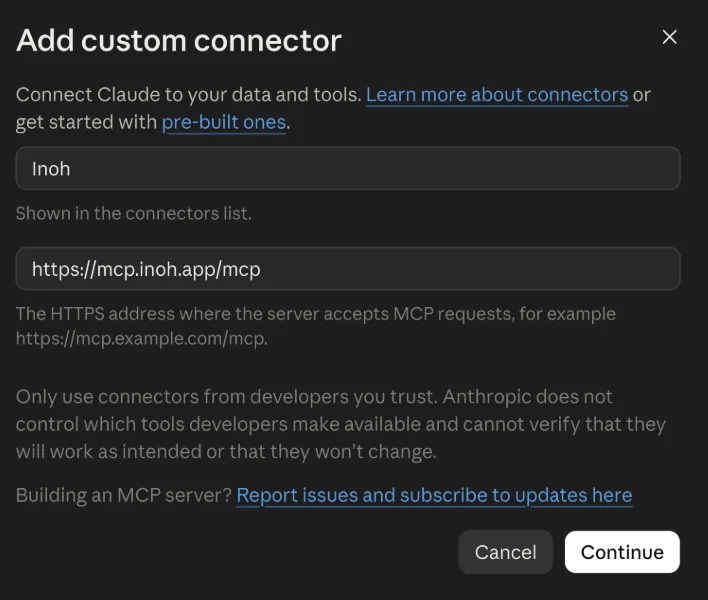
-
Keep the default options to add the connection, then select Connect.
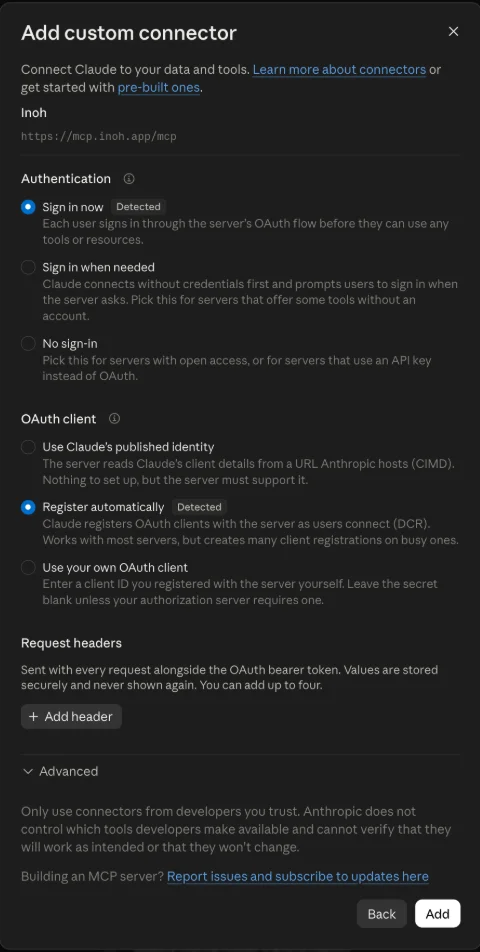
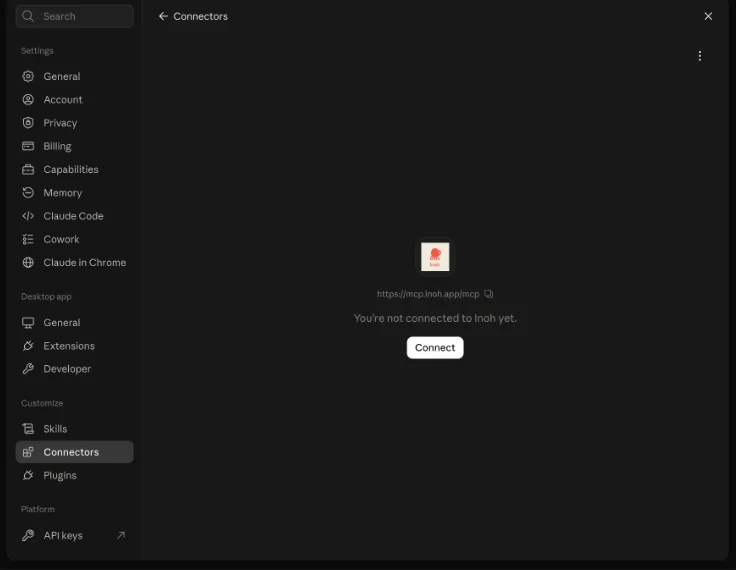
-
Finish signing in to Inoh with the sign-in code sent to your email.
-
Start a new chat, open + → Connectors, and turn on Inoh. You can now use the same connection in Claude on your other devices.
Connect in a browser instead
-
Open claude.ai in a browser and sign in. Use the same Claude account you use on your other devices.
-
Open Customize → Connectors, select +, then Add custom connector.
-
Enter Inoh as the name and paste this address into the server URL field. Leave the advanced settings empty.
https://mcp.inoh.app/mcp -
Select Add, then Connect. Finish signing in to Inoh with the sign-in code sent to your email.
-
Start a new chat, open + → Connectors, and turn on Inoh. You can now use the same connection in Claude on your other devices.
Set Inoh up once and it follows your account: we added it in the Mac app, and it then worked in the browser and in the iPhone app with no extra steps. The Windows and Android apps follow Claude's guide and are untested. Free accounts can add one custom connection. On a Team or Enterprise account, an owner may need to enable it. See Claude's setup help. Last checked September 21, 2026.
Chat apps
ChatGPT Mac app only
- Set up in
- Mac app (tested) or Windows app
- Use in
- Only the app you set it up in, so the Mac app for now, not the browser or the phone apps
-
In the ChatGPT Mac or Windows app, open Settings → Plugins, then choose Add → Add MCP server. These steps and screenshots have been tested on a Mac.
-
Enter Inoh as the name. Set Type to Streamable HTTP, paste this address into URL, and select Save. Leave Bearer token env var and both header fields empty.
https://mcp.inoh.app/mcp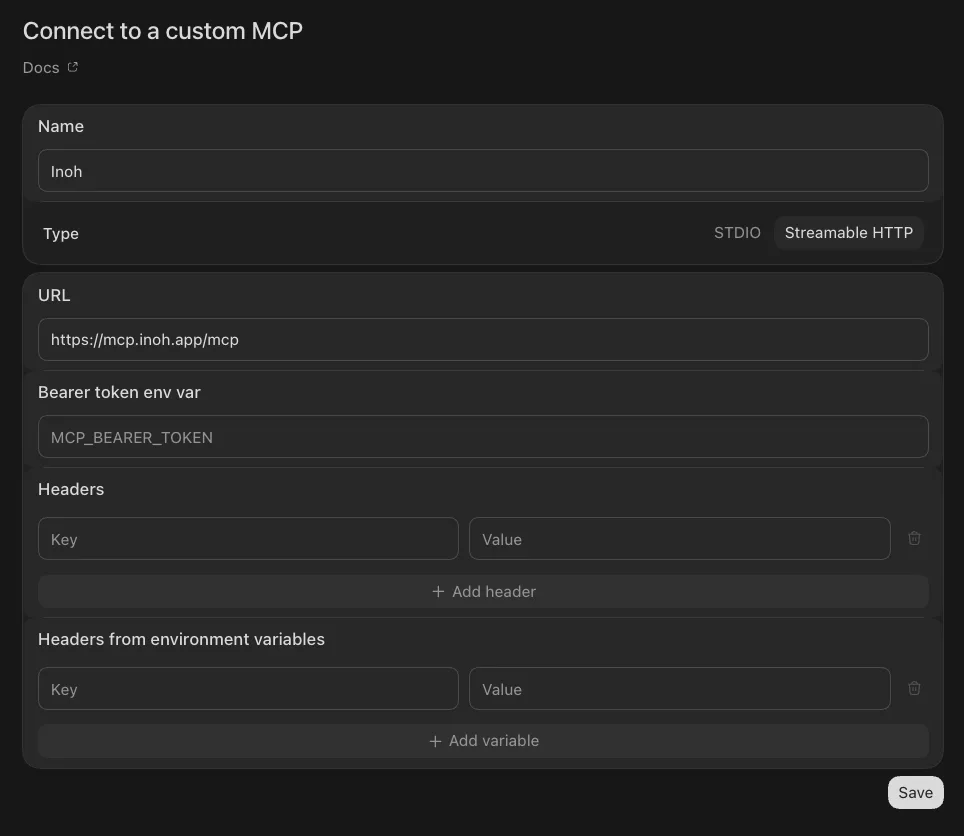
-
Open the MCPs tab, find Inoh, and select Authenticate. Finish signing in to Inoh.
We set Inoh up in the ChatGPT Mac app and it works there. That connection stays in the desktop app: it does not appear on chatgpt.com, and the iPhone, iPad and Android apps have no way to add a custom MCP server at all. To reach those, Inoh needs to ship as a Plugin rather than a connection you add yourself, and we are working on it. The Windows steps follow OpenAI's desktop help and are untested. Last checked September 21, 2026.
Chat apps
Grok Bot Not supported yet
Chat apps
Gemini Not supported yet
Chat apps
Muse Not supported yet
Terminal CLIs
Claude Code Works
-
Add Inoh for your user account.
claude mcp add --transport http --scope user inoh https://mcp.inoh.app/mcp
-
Start Claude Code.
claude
-
Open the MCP servers list from inside Claude Code.
/mcp -
Select inoh, then Authenticate, and complete the Inoh sign-in with a one-time password.
Terminal CLIs
Codex CLI Works
-
Run this command once in your terminal.
codex mcp add inoh --url https://mcp.inoh.app/mcp
-
Verify that Inoh is connected.
codex mcp list
Terminal CLIs
Grok CLI Works
-
Run this command once in your terminal.
grok mcp add --transport http inoh https://mcp.inoh.app/mcp
-
Start Grok.
grok
-
Open the MCP servers panel.
/mcps -
Select inoh, then complete the Inoh sign-in with a one-time password.

Terminal CLIs
Gemini CLI Works
-
Add Inoh for your user account.
gemini mcp add --transport http --scope user inoh https://mcp.inoh.app/mcp
-
Start Gemini.
gemini
-
Authenticate the OAuth connection from inside Gemini.
/mcp auth inoh -
Confirm that the server is connected, still inside Gemini.
/mcp list
Terminal CLIs
Muse Code Works
-
Install Muse Code, then restart your terminal so the installer's
~/.local/binis on your PATH.curl https://dev.meta.ai/install.sh | bash
-
Add Inoh to your Muse settings file at
~/.config/muse/settings.json, creating the file if it is not there yet. Leave every other key in the file as it is.{ "mcpServers": { "inoh": { "url": "https://mcp.inoh.app/mcp" } } } -
Sign in to Inoh. Press Enter to open your browser, sign in, and approve access.
muse mcp login inoh --callback-port 8181
Logged in to MCP server `inoh`.
-
Start Muse.
muse
-
Confirm the connection from inside Muse. The MCP tools panel lists inoh as connected, along with the Inoh tools it brings.
/mcp
Muse Code runs on macOS and Linux and needs curl and bash. See Meta's Muse Code docs. Last checked September 20, 2026.